A useful AI interview assistant on macOS needs more than a chat box. It needs screen or window access, a quick capture trigger, prompt detection, and generated reasoning, code, complexity analysis, and tests. The steps below show this setup using CodingInterviewAI.
Generic AI tools can answer coding questions, but a live interview workflow on macOS has specific setup requirements. Before choosing a product, make sure the workflow covers capture, permissions, triggering, and interview-ready output.
The assistant needs a way to run alongside your interview environment, usually as a desktop app or local workflow that stays available during the session.
On macOS, problem capture requires permission to read the selected browser window, coding pad, or full screen that contains the prompt.
A practical setup should let you capture the prompt without switching context, typically with a button or global keyboard shortcut.
The assistant has to detect the coding prompt, examples, constraints, and visible starter code before it can reason about a solution.
For interview prep, the output should include the approach, code, complexity analysis, and test cases instead of only a generic chat response.
CodingInterviewAI is built around the live coding interview workflow instead of a general prompt-and-response chat.
Built for live coding interviews, not generic chat.
Captures a selected screen or application window.
Works with coding problems shown in CoderPad, HackerRank, CodeSignal, Codility, and similar interview platforms.
Suggests solution patterns before generating code.
Provides reasoning, code, complexity analysis, and tests.
Uses a desktop workflow with global shortcuts for fast capture.
Confirm these requirements before installing the macOS app.
macOS 10.15 Catalina or later.
Apple Silicon Mac for the current macOS download link.
Admin password for the temporary macOS security command.
Terminal access.
Screen Recording permission for prompt capture.
A CodingInterviewAI account and credits if required for your usage.
The current macOS app is unsigned.
These steps install CodingInterviewAI, handle the current unsigned macOS app, and keep the Gatekeeper change temporary.
Step 1
Download the application
Click the macOS download button above to download the .dmg file.
Step 2
Disable Gatekeeper temporarily
The current macOS app is unsigned, so Gatekeeper can block it before installation. Open Terminal and run this command only for the install window:
sudo spctl --master-disableEnter your macOS password when prompted. Terminal may not show characters while you type your password.
Step 3
Install the application
Mount the downloaded .dmg file by double-clicking it.
Drag CodingInterviewAI to your Applications folder.
Step 4
Re-enable Gatekeeper immediately
After the app is installed, turn Gatekeeper back on:
sudo spctl --master-enableStep 5
Troubleshooting
If macOS blocks launch after installation, confirm CodingInterviewAI is in Applications, then open Terminal and run:
sudo xattr -d com.apple.quarantine /Applications/CodingInterviewAI.appEnter your password if prompted, then open CodingInterviewAI from the Applications folder.
macOS requires explicit permission before an interview assistant can read another app window. Grant this before your interview.
Run a short test session so the permissions, selected window, capture trigger, and solution generation are all working before the live call.
HOW IT WORKS
Select the screen containing your coding problem, choose a pattern, and get generated code with reasoning, complexity analysis, and tests. Use global keyboard shortcuts throughout the entire workflow.
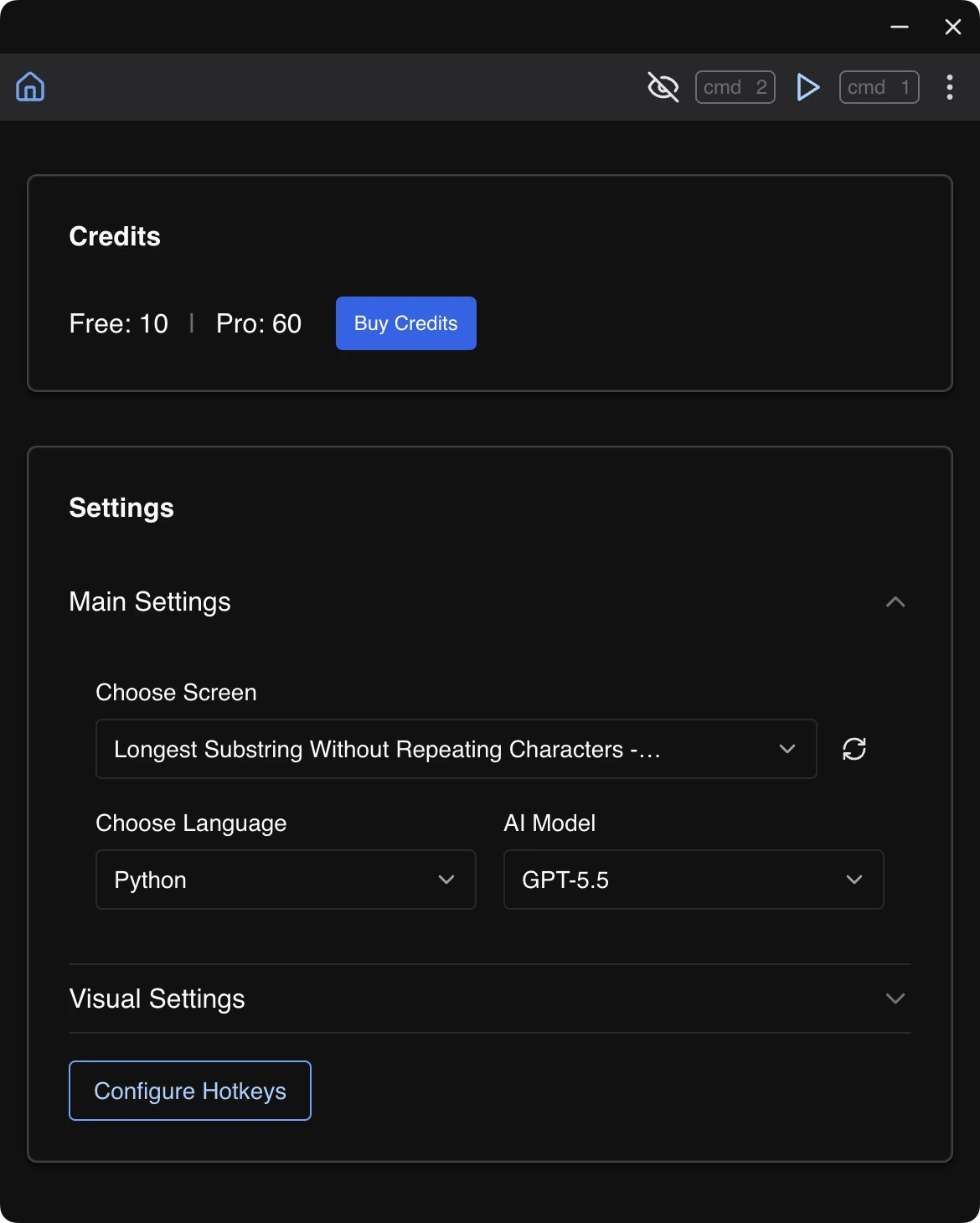
STEP 01
Choose the screen or application window containing the problem, then select your programming language and AI model.
Screen or window · Programming language · AI model
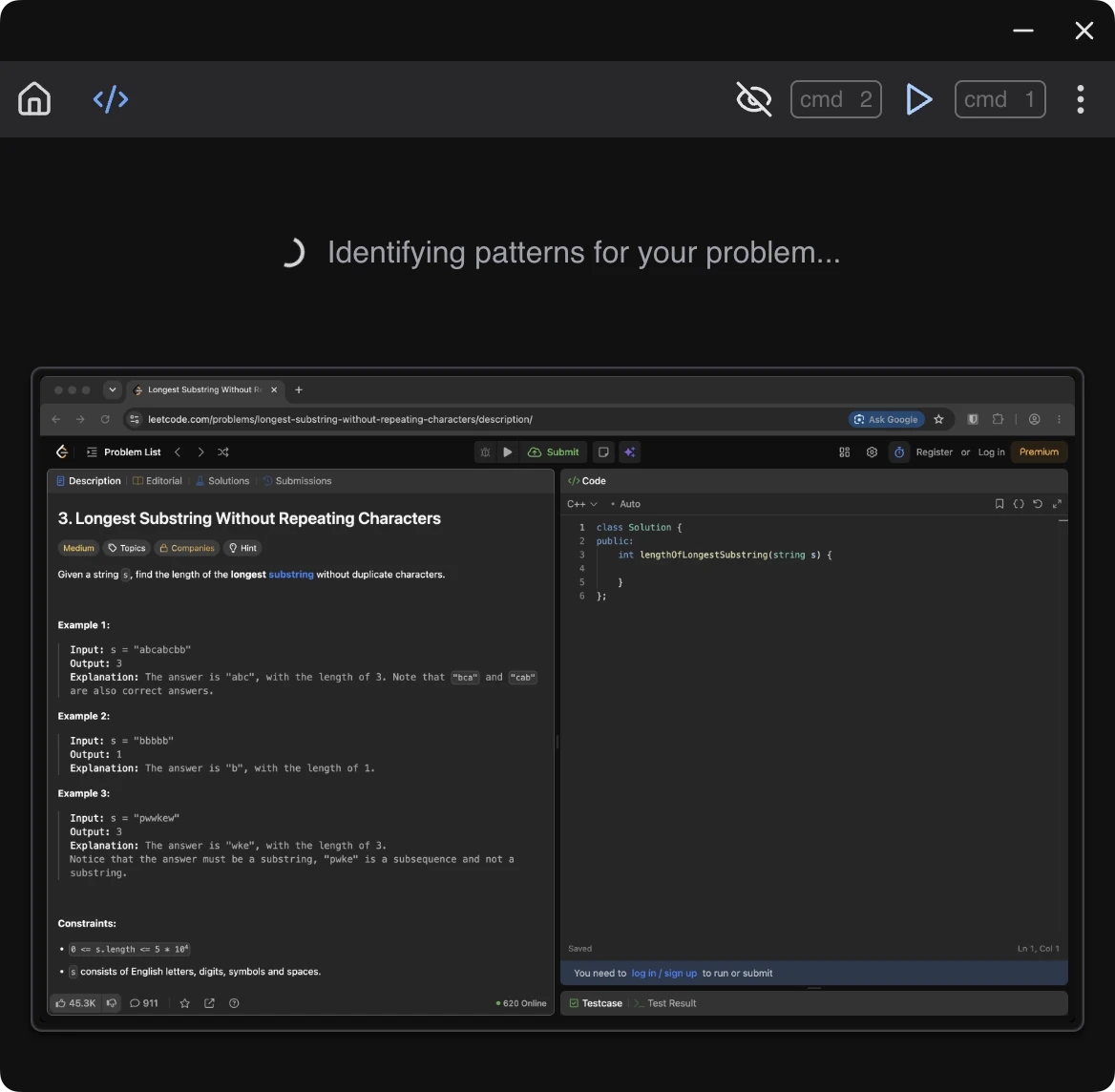
STEP 02
Capture the coding problem with a global keyboard shortcut.
One-click capture · Global shortcut · No retyping
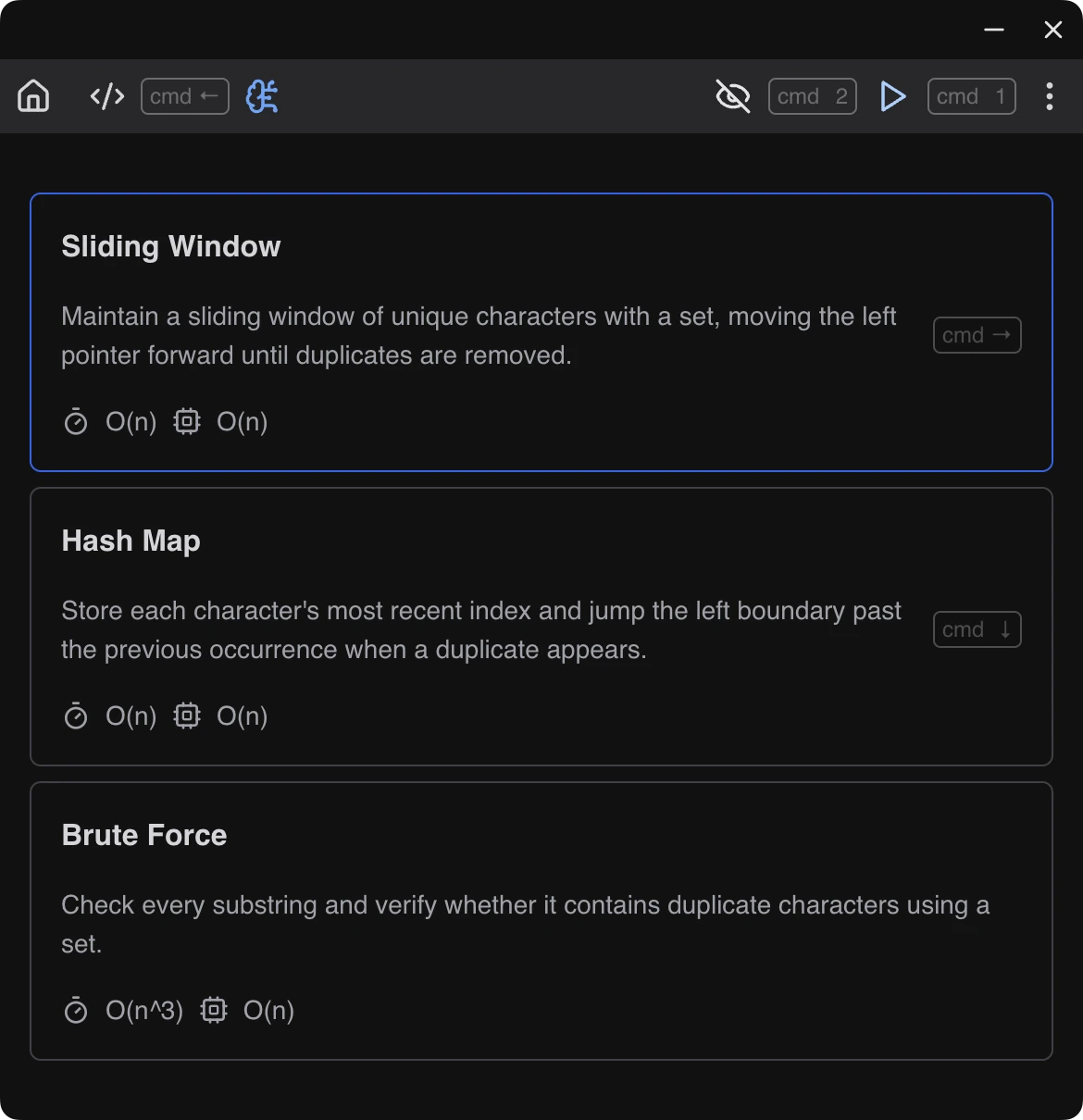
STEP 03
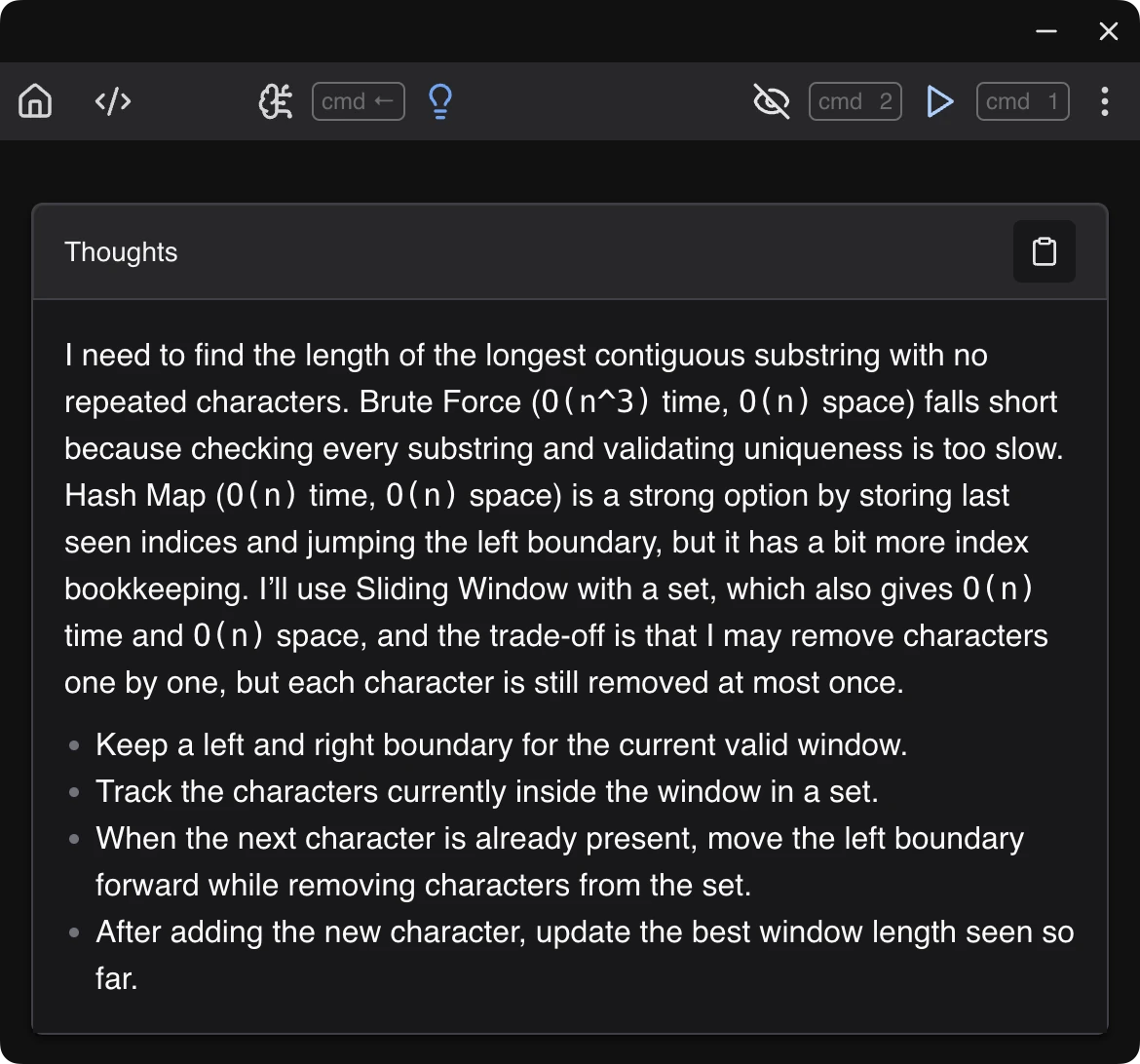
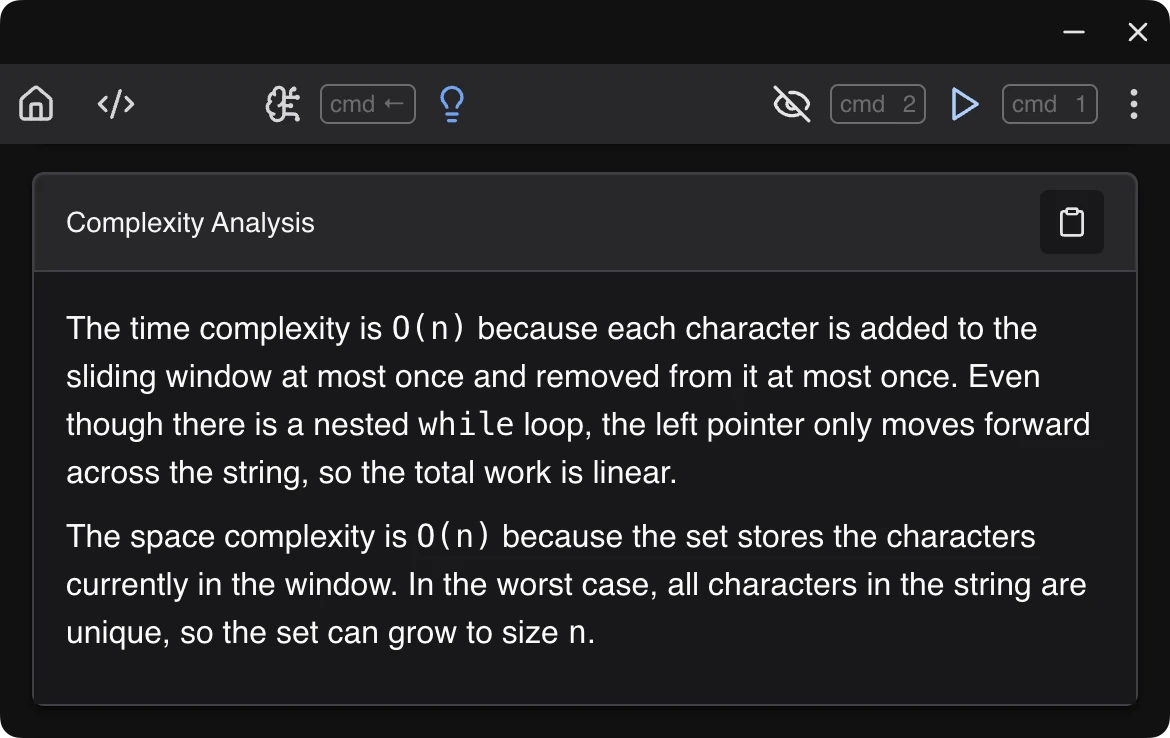
Compare the suggested patterns and their complexity estimates, then choose one for the solution.
Suggested patterns · Time complexity · Space complexity
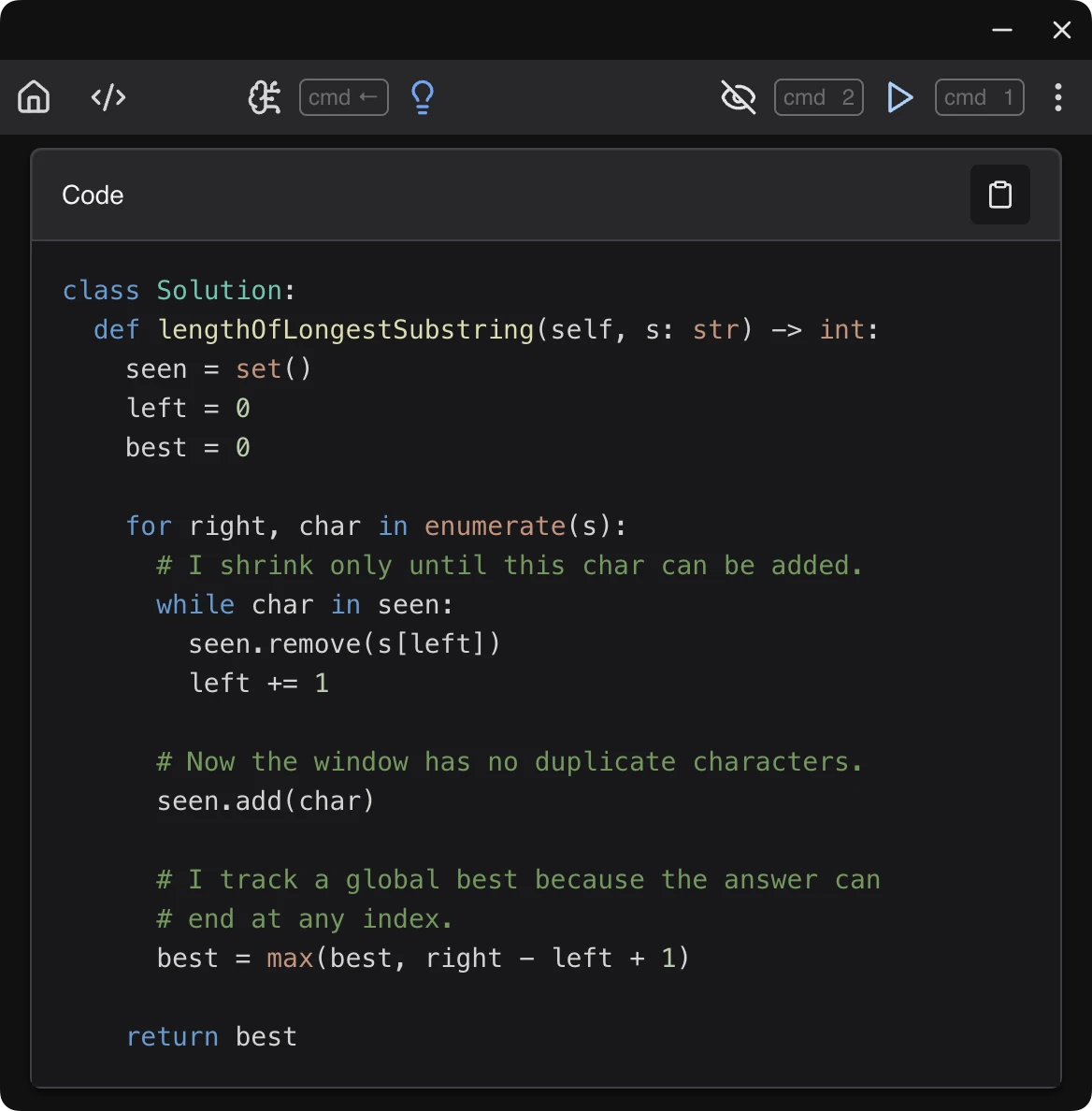
STEP 04
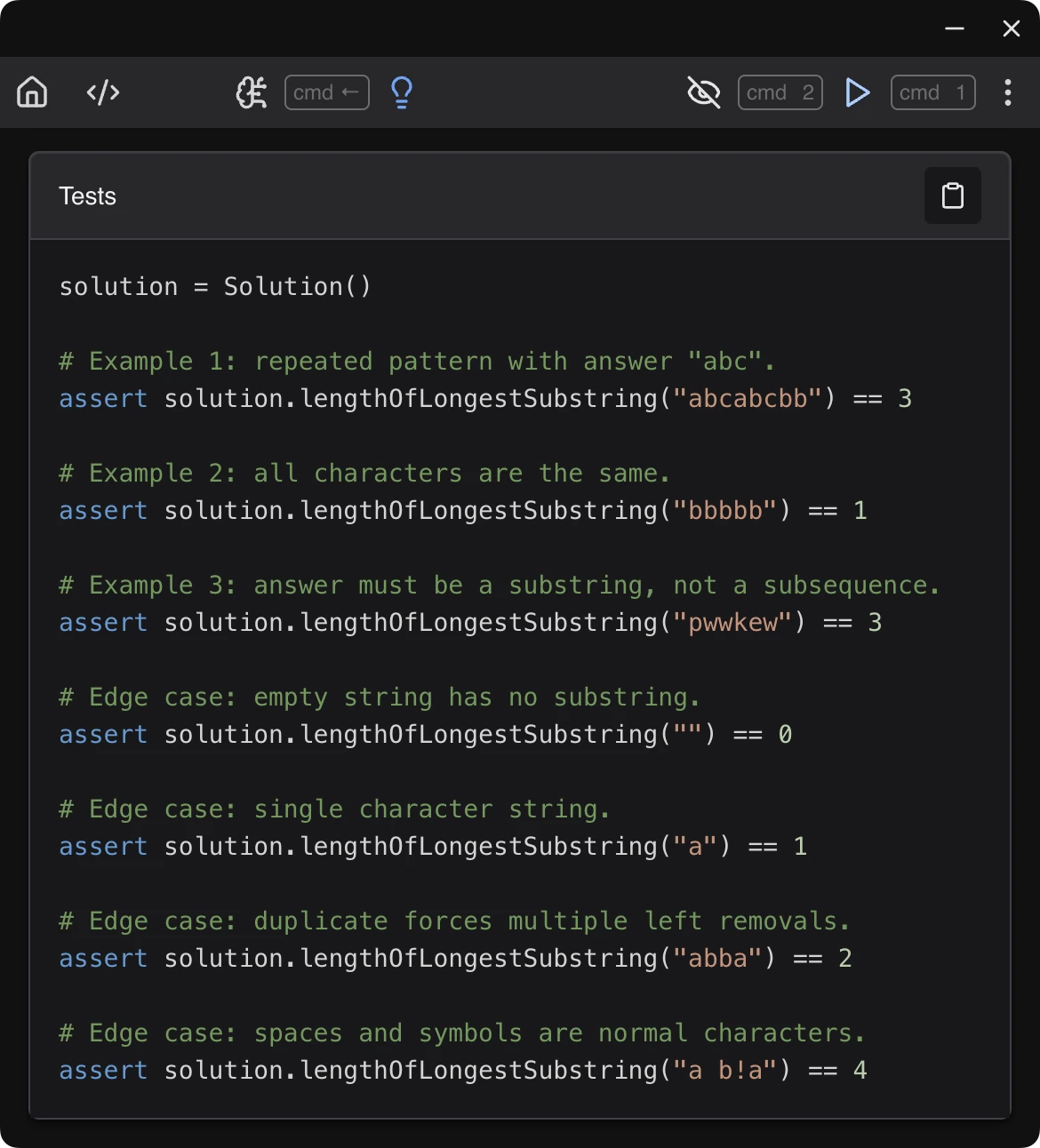
Get clear reasoning, code, complexity analysis, and tests in one place.
Reasoning · Code · Complexity · Tests
If the app is signed and notarized, you normally do not need to disable Gatekeeper. The current CodingInterviewAI macOS app is unsigned, so use the temporary Gatekeeper workaround only during installation. Re-enable Gatekeeper immediately after installation.
macOS requires Screen Recording permission before an app can read the contents of another app window or screen. CodingInterviewAI needs that access to capture the coding prompt from your selected browser or interview window.
The current macOS download link is for Apple Silicon Macs. If you use an Intel Mac, check the download page for available builds before relying on this setup for an interview.
Yes. CodingInterviewAI is designed to capture coding problems shown in CoderPad and similar browser-based interview tools after you grant Screen Recording permission.
Yes. CodingInterviewAI can work with coding problems shown in HackerRank on macOS when the problem is visible in the selected browser window and Screen Recording permission is enabled.
Open CodingInterviewAI once, trigger a capture, and check Screen Recording again. If it still does not appear, quit and reopen the app, confirm it is installed in Applications, and restart macOS if the permission list does not refresh.
Download CodingInterviewAI, complete the setup steps, and run a quick screen capture test before your live coding interview.